The diversity of Linux desktop environments is one of its most unique strengths. Unlike Windows and macOS, Linux lets you freely choose and switch desktop environments, each representing a different design philosophy, resource footprint, and user experience. This article walks you through the eight most popular Linux desktop environments today.
What Is a Desktop Environment?
A Desktop Environment (DE) is a complete set of components that provide the graphical user interface experience, including the window manager, panels, menus, system settings, file manager, and bundled applications. Different desktop environments emphasize performance, aesthetics, and customizability to varying degrees.
Quick Comparison
| Desktop Environment | Toolkit | Resource Usage | Customizability | Target Users |
|---|---|---|---|---|
| GNOME | GTK 4 | High | Medium (via extensions) | Modern workflow users |
| KDE Plasma | Qt 6 | Medium | Very high | Power users, customization fans |
| Xfce | GTK 3 | Low | Good | Older hardware, efficiency users |
| Cinnamon | GTK 3 | Medium | Good | Traditional desktop users |
| MATE | GTK 3 | Low-Medium | Good | Classic desktop fans |
| LXQt | Qt 6 | Very low | Limited | Resource-constrained systems |
| Budgie | GTK 3 | Medium | Good | Users wanting simplicity |
| Deepin DDE | Qt 5/6 | Medium | Limited | Aesthetics seekers |
1. GNOME
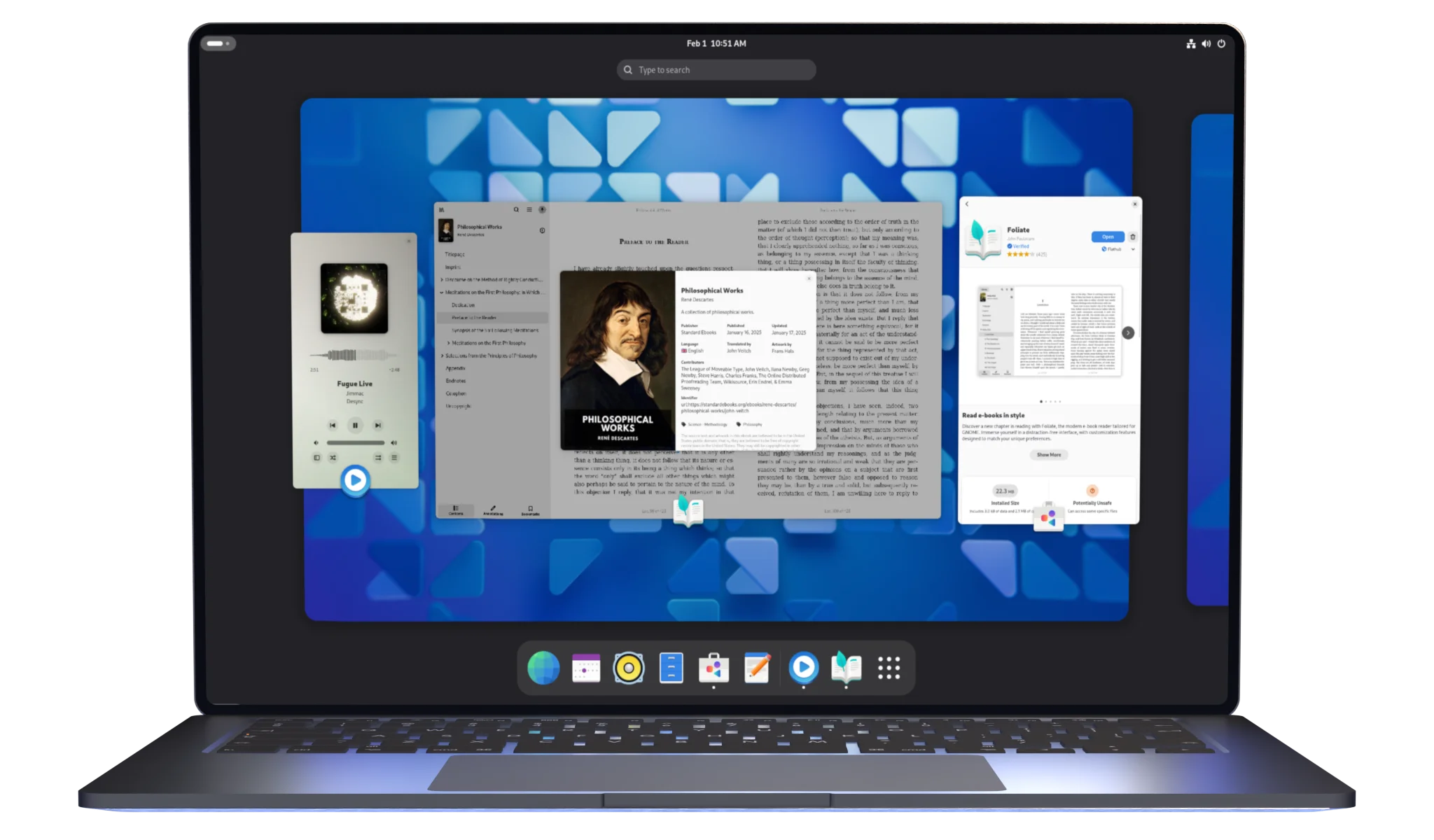
GNOME is one of the most popular Linux desktop environments today, used by mainstream distributions such as Ubuntu, Fedora, and Debian. It is known for its clean, modern design and keyboard-driven workflow.
Pros
- Modern interaction design: the Activities overview and multiple workspaces provide a smooth task-switching experience
- Powerful extension ecosystem: GNOME Shell Extensions (extensions.gnome.org) can greatly expand functionality
- Excellent accessibility support: built-in screen reader, high-contrast themes, and more
- Stability and consistency: strict UI/UX design guidelines ensure a unified experience
Cons
- Higher resource usage: needs at least 4GB of RAM to run smoothly by default
- Limited native customization: many customizations rely on third-party extensions that may break with version updates
- Learning curve: differs significantly from traditional desktop layouts, so new users need time to adapt
Installation
1 | # Ubuntu/Debian |
2. KDE Plasma
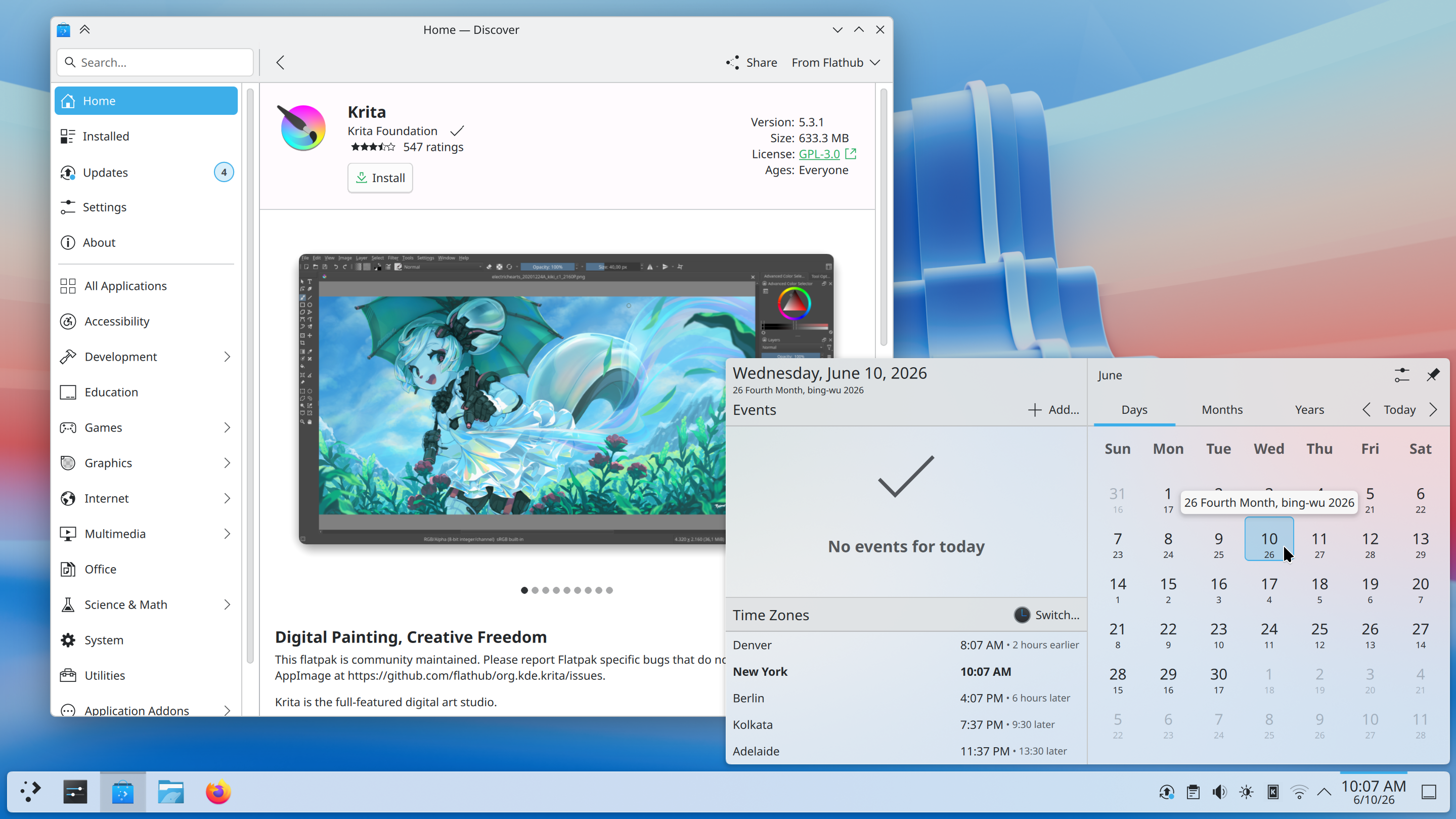
KDE Plasma is an extremely feature-rich and highly customizable desktop environment built on the Qt toolkit. It offers stunning visuals while achieving surprisingly lightweight performance in Plasma 6.
Pros
- Unmatched customization: from panels and widgets to window decorations, almost every pixel can be customized
- Feature-rich: bundled with a large suite of useful KDE applications (Dolphin file manager, Konsole terminal, etc.)
- Lightweight performance: Plasma 6 is well optimized, with resource usage far lower than expected
- KDE Connect: seamless phone integration for notification sync, file transfer, remote input, and more
- Multi-platform support: beyond Linux, it also supports BSD and even Windows/macOS
Cons
- Too many options: the sheer number of settings can overwhelm new users
- Default configuration isn’t minimal: the out-of-the-box experience needs some tweaking to feel ideal
- Wayland transition: although Plasma 6 has fully moved to Wayland, some apps still have compatibility issues
Installation
1 | # Ubuntu/Kubuntu |
3. Xfce

Xfce is a classic lightweight desktop environment that strikes an excellent balance between performance and features. It is especially suited to older hardware or users who want maximum efficiency.
Pros
- Very low resource usage: runs smoothly with just 512MB of RAM
- Stable and reliable: a steady development pace with each release thoroughly tested
- Highly configurable: not as rich as KDE, but enough for most needs
- Great remote experience: its lightweight nature shines in remote desktops and virtual machines
- Good modular design: components can be upgraded and replaced independently
Cons
- Traditional visual style: the default look is plain and lacks modern effects
- Lagging Wayland support: experimental Wayland support only started in version 4.20
- Fewer bundled apps: compared to GNOME and KDE, Xfce’s bundled applications are more basic
Installation
1 | # Ubuntu/Xubuntu |
4. Cinnamon
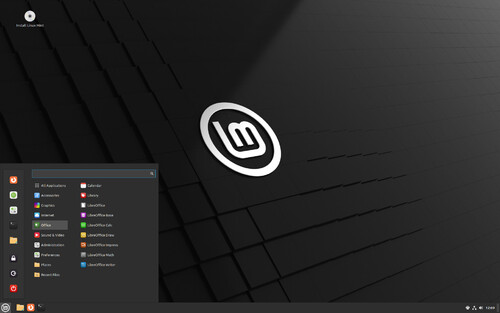
Cinnamon is a desktop environment developed by the Linux Mint team as a fork of GNOME 3, aiming to provide a traditional, familiar desktop with modern features. It is the default desktop environment of the Linux Mint flagship edition.
Pros
- Familiar traditional layout: the bottom panel + application menu layout is very friendly to Windows users
- Out-of-the-box experience: Linux Mint has heavily optimized Cinnamon for immediate use
- Applets and Desklets: a rich ecosystem of desktop mini-programs
- Stable GTK theme compatibility: excellent support for themes and icon themes
- Spices online store: install extensions, themes, and applets directly through a GUI
Cons
- Relatively isolated ecosystem: developed mainly around the Linux Mint ecosystem, so the experience on other distributions may not be as polished
- Medium resource usage: requires more memory than Xfce and LXQt
- Slow Wayland progress: Cinnamon still uses X11 as its primary display server
Installation
1 | # Ubuntu |
5. MATE
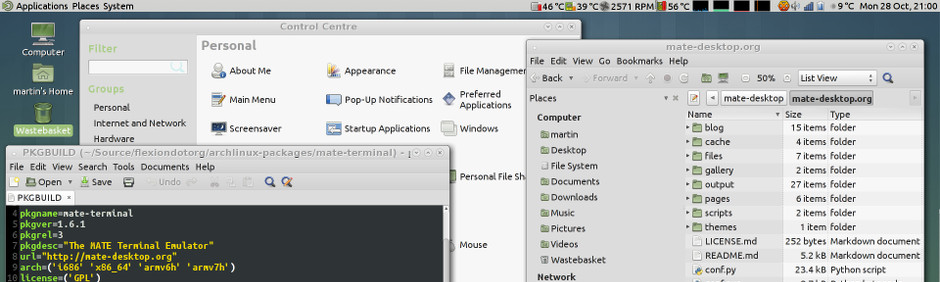
MATE is the continuation of GNOME 2, preserving the classic desktop interaction paradigm. It is both lightweight and fully featured — an excellent choice for users who want a traditional desktop experience.
Pros
- A direct descendant of GNOME 2: keeps the classic bottom panel, application menu, and desktop icons
- Lightweight and efficient: lower resource usage than Cinnamon, close to Xfce levels
- Full-featured: provides a complete set of bundled apps (Caja file manager, Pluma text editor, etc.)
- Good compatibility: works perfectly with most GTK applications
Cons
- Slightly dated design language: the interface lacks a modern feel, animations, and visual effects
- Limited development resources: a small maintenance team means slower new-feature development
- Limited Wayland support: still runs mainly on X11
Installation
1 | # Ubuntu/Ubuntu MATE |
6. LXQt
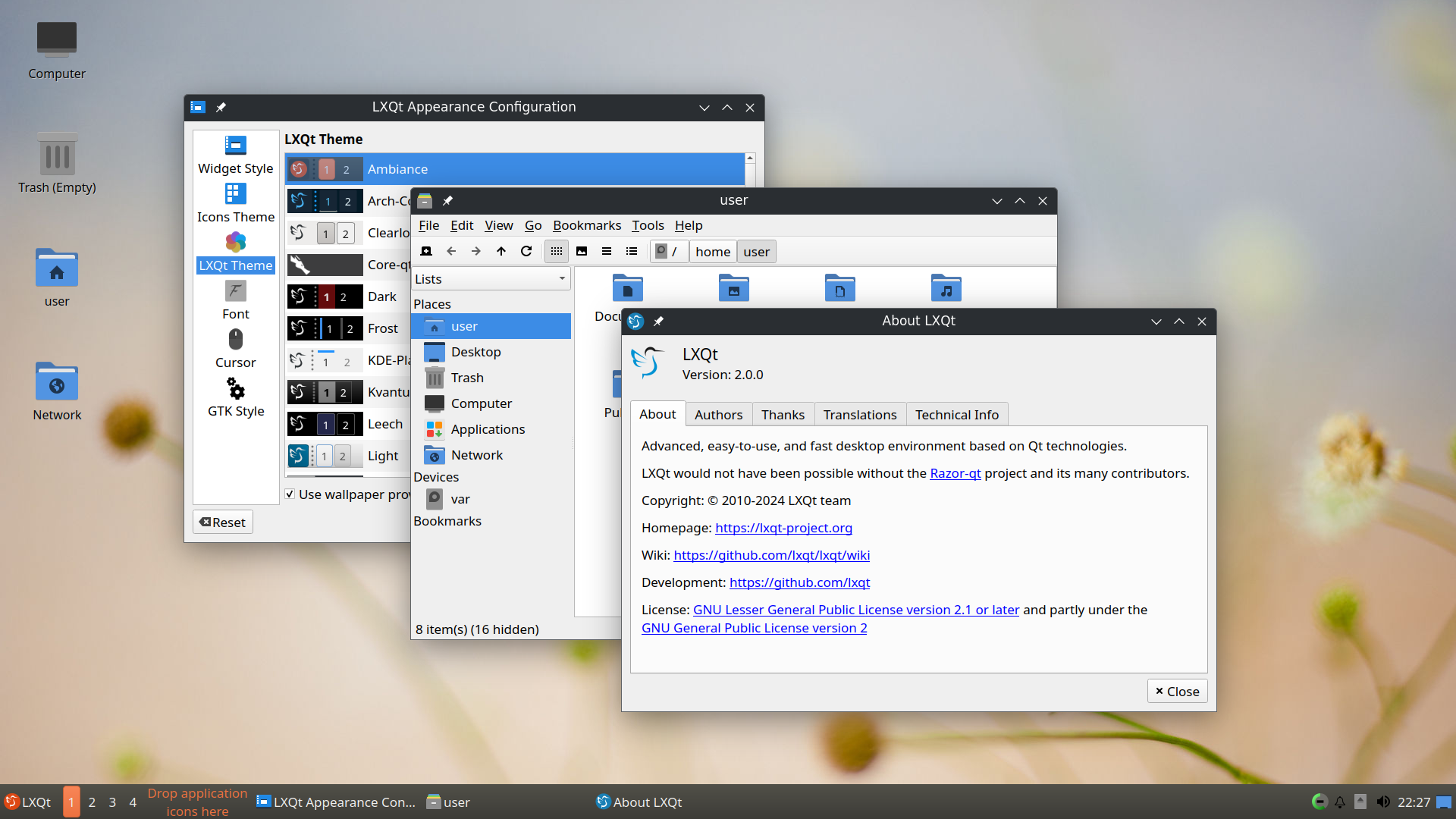
LXQt is the next generation of LXDE, combining LXDE’s lightweight philosophy with the modern features of the Qt toolkit. It is the best choice for resource-constrained devices or users who want a minimal experience.
Pros
- Extremely lightweight: runs with as little as 512MB of RAM and very low CPU usage
- Modern Qt stack: a more modern codebase than the GTK 2-based older LXDE
- Modular design: every component can be replaced independently
- Active Wayland support: since version 2.3.0, the Wayland session is no longer experimental
Cons
- Fairly basic features: bundled apps and features are far less rich than KDE or GNOME
- Minimal visuals: the default look is plain
- Limited app ecosystem: few applications are developed specifically for LXQt
Installation
1 | # Ubuntu/Lubuntu |
7. Budgie
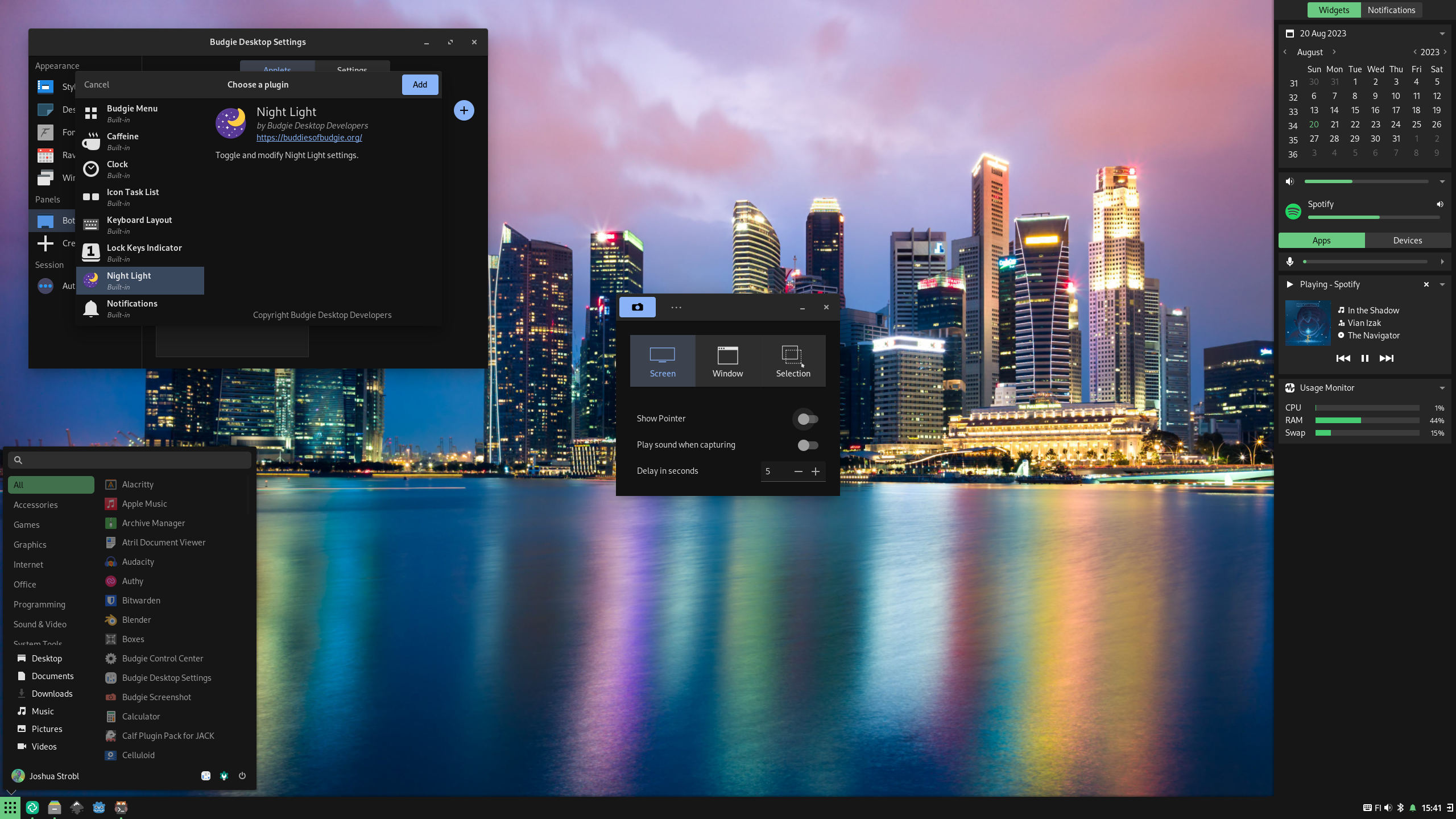
Budgie is a standalone desktop environment emphasizing simplicity, modernity, and elegance. Originally developed for the Solus distribution, it is now available on several mainstream distributions. Its core design philosophy is to “let the desktop stay out of the user’s way.”
Pros
- Clean, elegant design: a tidy interface with no clutter
- Raven sidebar: integrates the notification center, calendar, media controls, and system settings
- Multiple layout support: easily switch to macOS-, Windows-, or Unity-like layouts
- Built on the mature GNOME stack: stability is assured
Cons
- Small development team: updates are less frequent than GNOME and KDE
- Limited extension ecosystem: fewer applets available than GNOME and KDE
- Varied support across distributions: the experience and default configuration differ noticeably between distributions
Installation
1 | # Ubuntu/Ubuntu Budgie |
8. Deepin DDE
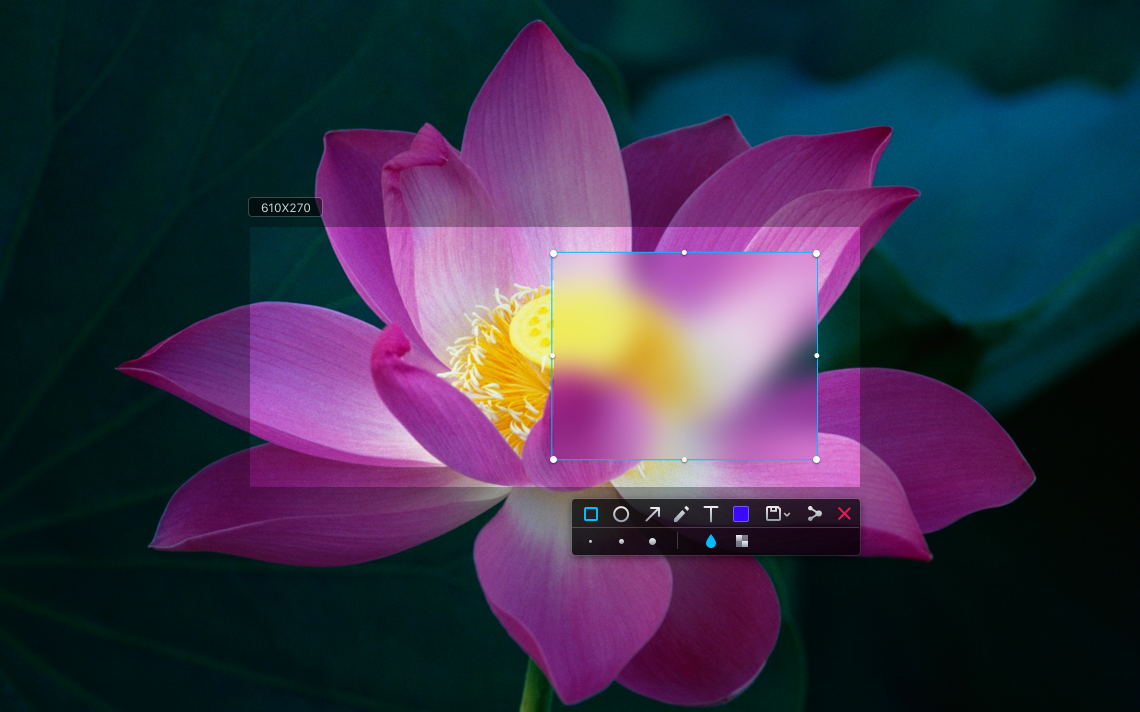
Deepin DDE (Deepin Desktop Environment) is developed by Wuhan Deepin Technology, known for its refined and beautiful UI design. Its visual experience rivals macOS and Windows 11, making it an ideal choice for users who value aesthetics.
Pros
- Exquisite visual design: a unified rounded-corner design language, frosted-glass effects, and smooth animations
- In-house DTK development framework: provides a unified application development interface
- Rich bundled in-house apps: over 40 apps including Deepin Movie, Deepin Music, and Deepin Screenshot
- Friendly Chinese support: excellent native support for Chinese users and input methods
Cons
- Higher resource usage: the beautiful visuals require stronger hardware
- Security concerns: the openSUSE security team has pointed out a lack of security culture in DDE
- Limited support on mainstream distributions: outside Deepin OS, the experience may not be perfect
- Lower level of internationalization: outside Chinese, localization quality varies
Installation
1 | # Ubuntu/UbuntuDDE |
How to Choose the Right Desktop Environment
| Use Case | Recommended DE |
|---|---|
| Beginners, migrating from Windows | Cinnamon, KDE Plasma |
| Seeking beauty and modernity | Deepin DDE, GNOME |
| Older hardware or limited resources | Xfce, LXQt, MATE |
| Love deep customization | KDE Plasma |
| Prefer a keyboard-driven efficient workflow | GNOME (+ extensions) |
| Servers or remote desktops | Xfce, LXQt |
| Minimalism | Budgie, LXQt |
Things to Keep in Mind
- Try it in a VM first: to test a new desktop environment, use a virtual machine first to avoid affecting your main system
- Coexistence issues: installing multiple desktop environments on one system can cause theme and setting conflicts; use different display managers to isolate them
- Incomplete uninstall risk: removing a desktop environment may accidentally delete system components due to dependencies; use dedicated meta-package management tools
- Wayland vs. X11: newer desktop environments (GNOME, KDE Plasma 6) fully support Wayland, but X11 still has compatibility advantages in some scenarios (such as screen sharing)
Conclusion
The rich diversity of Linux desktop environments is a big part of its unique appeal. Whether you chase peak performance, love beautiful visuals, or are passionate about deep customization, there is a desktop environment for you. This freedom of choice is one of the irreplaceable core strengths of the Linux ecosystem.
Most importantly, you don’t have to commit to one forever — you can switch and experiment at any time to find what best fits your workflow and personal preferences.
References: